Manual OBS Mode
OBS Browser Sources autodetect and enter OBS Mode automatically — you don't need any of the below for the common case. These three settings exist for setups where the browser source isn't recognised (custom embeddings, non-OBS browsers viewing /game or /stream, etc.).
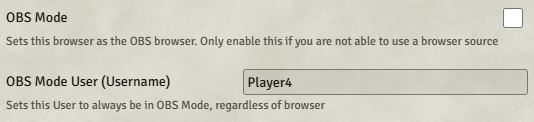
| Setting | Scope | Effect |
|---|---|---|
| Pin This Browser to OBS Mode | Client | Every tab in this browser stays in OBS Mode until disabled. |
| Designate User as OBS Client | World | Whatever browser this user logs into is treated as the OBS source. |
| Force OBS Mode on /stream | World | Render overlays on the /stream page regardless of who's logged in. |
There's a fourth setting that acts as a kill-switch:
- Disable OBS Mode for Everyone — overrides all three of the above. Useful if a user accidentally pins themselves into OBS Mode and can't find their way out.
Keyboard escape hatch
| Keybinding | Action |
|---|---|
| Ctrl+Shift+Alt+O | Disable OBS Mode — turns off the Pin This Browser client setting so the page returns to the normal Foundry UI. |
A page refresh is needed after triggering this shortcut. The binding is editable in Foundry's Configure Controls settings.
With Websocket
When using Manual OBS Mode with the OBS browser source, you'll still need to provide OBS Websocket credentials — either via the OBS Remote → Connection tab or via the browser source's Custom CSS.