Overlay Animations
The animation system lets overlays move, fade, and react to triggers through a track-based model. An overlay holds a set of named tracks, and the playback engine drives which track is active and where the playhead sits within it.
Data model
An overlay's animation field stores an OverlayAnimationData object:
{
  tracks: OverlayTrack[];
  initialTrackId: string;
  transitions: TrackTransition[];
}
initialTrackId points to the track that plays when the overlay first mounts. If animation is absent, the overlay is fully ambient — no playback, no transitions.
Tracks
Each OverlayTrack carries:
| Field | Type | Description |
|---|---|---|
id | string | Stable UUID. |
name | string | Display label shown in the editor. |
durationMs | number | Length of the track in milliseconds. 0 is valid for static tracks. |
behavior | TrackBehavior | What the engine does when playback reaches the end. |
lanes | TrackComponentLane[] | Per-component keyframe data. |
TrackBehavior is one of:
{ type: 'static' }— no playback; the engine evaluates the track att = 0and holds.{ type: 'looping' }— plays forward, then wraps back tot = 0and repeats.{ type: 'transition-on-end'; toTrackId: string; toTime: number }— when the playhead reachesdurationMs, the engine jumps totoTrackIdstarting attoTime.
Lanes
A TrackComponentLane targets one component by componentId and stores its keyframes. The current format uses per-property arrays:
{
  componentId: string;
  propertyKeyframes: Partial<Record<AnimatablePropertyKey, PropertyKeyframe[]>>;
}
The six animatable properties are:
| Key | Default |
|---|---|
opacity | 1 |
x | 0 (delta from the component's layout position) |
y | 0 (delta from the component's layout position) |
rotation | 0 (degrees) |
scaleX | 1 |
scaleY | 1 |
A PropertyKeyframe is { t: number; v: number; easing?: EasingV2 } where t is milliseconds from the start of the track (not a 0..1 offset).
The legacy keyframes: TrackKeyframe[] mixed-property shape is still loaded from persisted data and round-trips correctly — the engine converts it at evaluation time.
Easing
EasingV2 controls the curve between two keyframes:
{
  interpolation: 'constant' | 'linear' | 'bezier';
  equation?: EasingEquation;
  direction?: 'in' | 'out' | 'inout' | 'auto';
}
'constant' snaps to the previous value at the destination keyframe. 'linear' interpolates with no curve. 'bezier' applies a named equation:
sinusoidal · quadratic · cubic · quartic · quintic · exponential · circular · back · bounce · elastic
The interpolator is a pure-TypeScript implementation built into obs-utils. There is no GSAP dependency.
Transitions
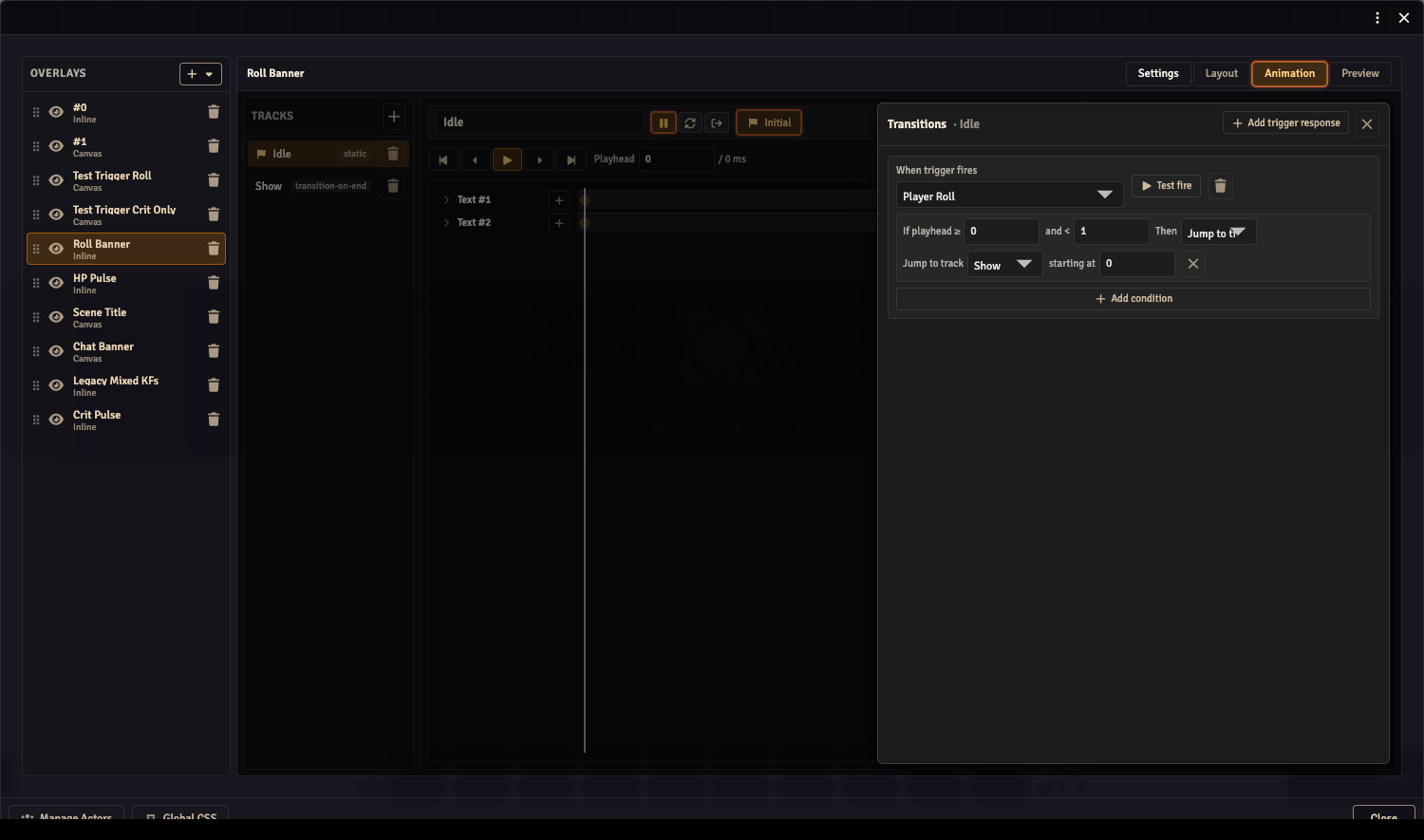
A TrackTransition describes how the overlay reacts when a named trigger fires while a given track is playing:
{
  triggerKey: string;
  fromTrackId: string;
  zones: TransitionZone[];
}
Each TransitionZone covers a time window on the track:
{
  startT: number;           // inclusive, in ms
  endT: number;             // exclusive, in ms
  destination: ZoneDestination;
}
ZoneDestination is either:
{ type: 'goto'; toTrackId: string; toTime: number }— jump to the given track at the given time in milliseconds.{ type: 'ignore' }— discard the trigger and continue playing.
When a trigger fires, the engine checks which zone's [startT, endT) range contains the current playhead and executes that zone's destination. For static tracks (where durationMs is 0 and there is no meaningful playhead position), the engine falls back to zones[0] if no zone matches.
Typical pattern
A common two-track setup has an idle track (static, no keyframes) and an active track (transition-on-end back to idle). A transition on the idle track maps the trigger to goto(activeTrack, 0). The active track plays through, then transition-on-end returns to idle automatically — no timer, no duration field on the overlay itself.
Authoring UI
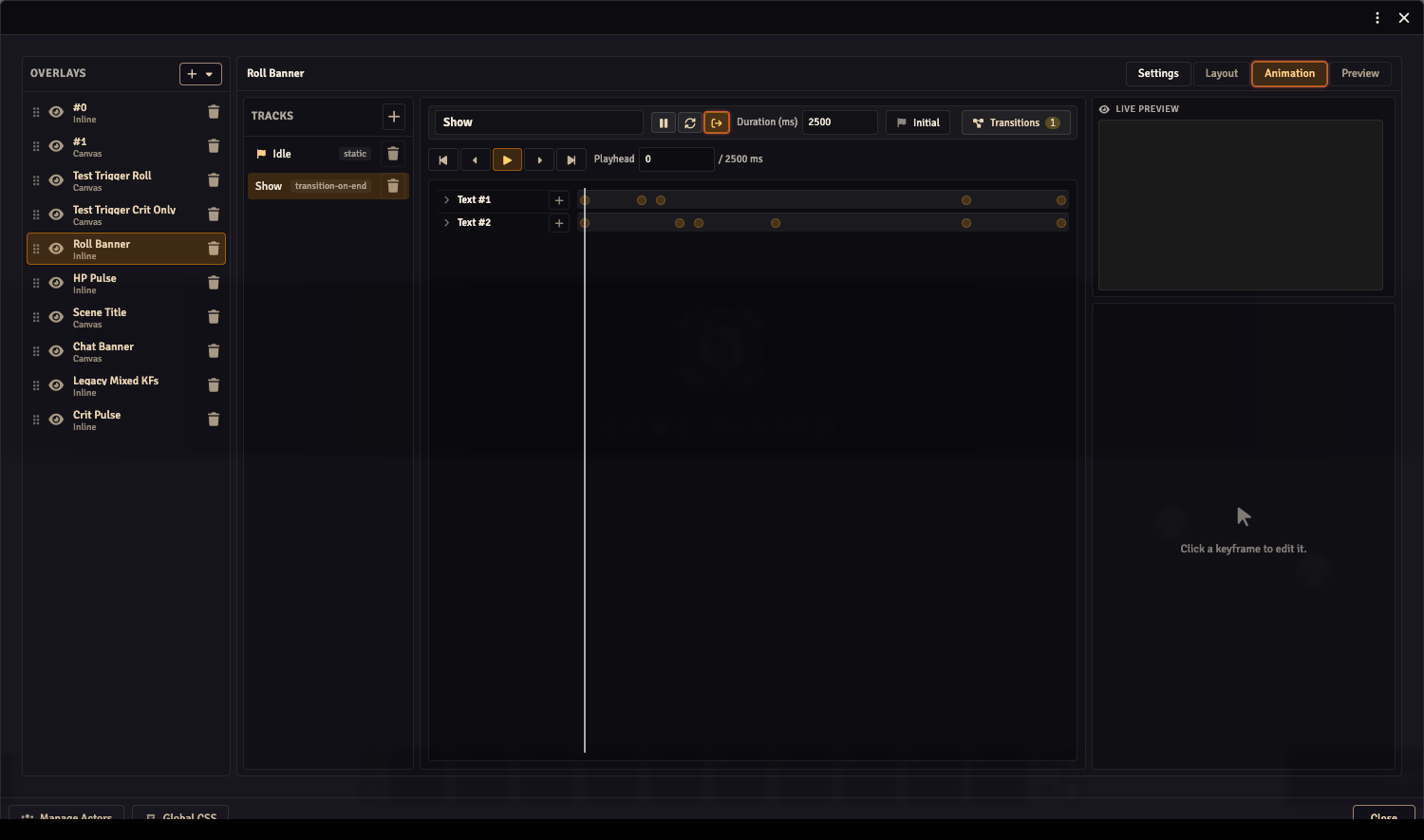
Animation is one of the four mode tabs in the Composer workspace header (Settings / Layout / Animation / Preview). Selecting the Animation tab shows:
TracksPane (left column) — lists all tracks for the current overlay. Click a track to select it. The initial track is marked; right-click or use the kebab menu to set a different track as initial, rename, or delete.
Center column — contains two stacked areas:
- TrackBar — shows the selected track's name, behavior, duration, and playback controls (play / stop / step-frame / jump-to-keyframe). The badge showing the transition count opens the TransitionsDrawer.
- KeyframeTimeline — horizontal scrubber with per-property keyframe rows for every component in the overlay. Click to position the playhead; click a keyframe diamond to select it. Drag to move a keyframe in time.
Right column — stacked:
- LivePreview — renders the overlay at the current playhead position as you scrub or play back, so you can see the animation without leaving the editor.
- KeyframeInspector — shows the selected keyframe's time, value, and easing controls. When a component row is selected (not a specific keyframe), shows per-property value inputs and diamond toggle buttons for inserting or removing a keyframe at the current playhead position.
TransitionsDrawer (slide-in) — opens from the transitions badge on the TrackBar. Lists all TrackTransition entries for the selected track and lets you add, remove, and configure them. Each transition entry shows the trigger dropdown, the zone list (each zone has a start time, end time, and destination picker), and the end-of-track behavior when behavior.type is transition-on-end.
If the overlay has no animation yet, the workspace shows an introductory placeholder with a Set up animation button that seeds an empty OverlayAnimationData with one static idle track.
Keyboard shortcuts
These shortcuts are active while the Animation workspace tab is open.
Timeline navigation
| Input | Action |
|---|---|
| Click on the timeline background | Move the playhead to that position. |
| Ctrl/Cmd+drag on the timeline background | Draw a lasso rectangle. All keyframe markers the rectangle intersects become selected when you release the mouse. |
| Drag a selected marker | Move that keyframe in time. |
| Drag when multiple markers are selected | Move all selected keyframes together. |
Prev/next keyframe buttons
The step-backward and step-forward buttons in the TrackBar advance the selection by one keyframe at a time.
| Input | Action |
|---|---|
| Click prev/next button | Jump to the immediately previous or next keyframe. |
| Ctrl/Cmd+click prev button | Jump to the very first keyframe. |
| Ctrl/Cmd+click next button | Jump to the very last keyframe. |
Nudging with arrow keys
When a keyframe is selected, the left and right arrow keys move it in time. The size of each step depends on the modifier held:
| Keys | Step |
|---|---|
| ← / → | 1 ms |
| Ctrl/Cmd+← / → | 10 ms |
| Shift+← / → | 100 ms |
Deleting keyframes
| Keys | Action |
|---|---|
| Backspace or Delete | Delete the selected keyframe (or all keyframes in the current multi-selection). |
tileBy and triggered overlays
The tileBy field on OverlayData controls how many instances the renderer creates:
| Value | Behavior |
|---|---|
'actors' | One tile per actor in the bound actor list. Default for ambient overlays like HP bars. |
'players' | One tile per non-GM user currently active. The trigger payload is routed to the tile whose user.id matches the event source. |
'users' | One tile per active user including GMs. |
'once' | A single instance regardless of context. |
Triggered overlays (those with transitions out of the idle track) typically use tileBy: 'players' so each player sees their own overlay react to their roll. This is set on the Settings workspace tab — see Stream Composer.