OBS Remote
OBS Remote lets you tie Foundry events to OBS actions — switch scenes when combat starts, toggle a “round timer” source when the round changes, stop recording on core.onStopStreaming, etc.
Watch the OBS Remote tutorial video for a visual guide (pre-V5; the new menu is described below).
Caveats
Section titled “Caveats”OBS Browser Sources expose a minimal API automatically — only scene switching and start/stop recording or streaming. For the full feature set (source toggles, audio control, anything else), you need OBS Websocket V5 installed inside OBS itself.
OBS Remote runs in the OBS browser source, so it only acts on the /game view by default. Use /stream directly if your scene only has the chromeless overlay view.
The combined menu
Section titled “The combined menu”In V5 the OBS Remote menu and the old OBS Websocket Settings menu have been merged. There’s one entry now — Module Settings → OBS Remote Settings — with two tabs.
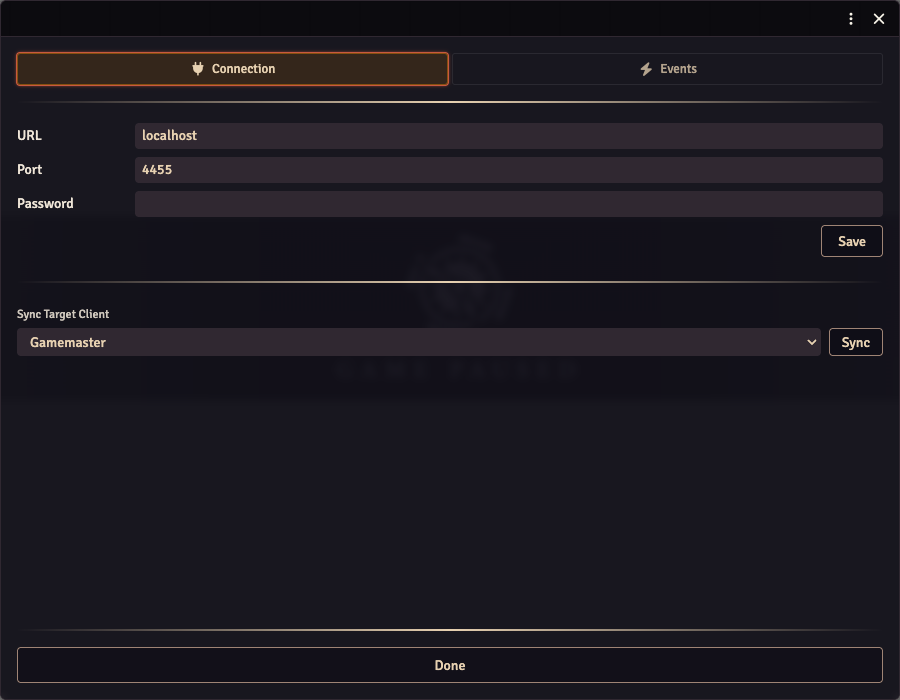
Connection tab
Section titled “Connection tab”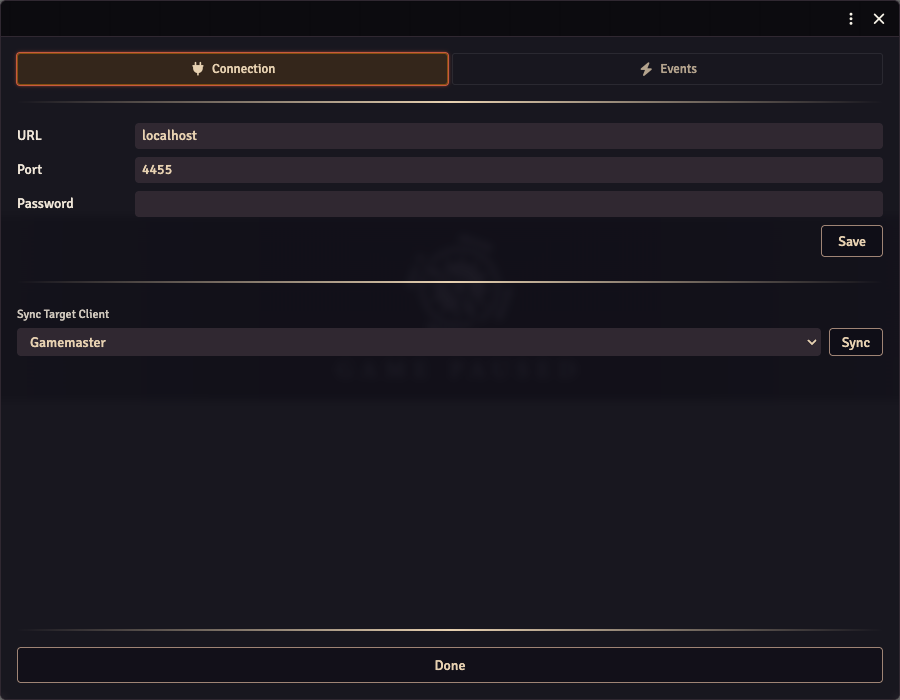
Enter your OBS Websocket URL, port, and password. The Save button persists; the Sync button below pushes the local credentials to whichever user is selected in the dropdown (the typical flow: configure on the GM machine, sync to the OBS user).
You have two options for the credentials:
-
In-Foundry: enter them here. Stored in the world settings.
-
In OBS browser source CSS: paste the following block into your Browser Source’s Custom CSS field and they override whatever Foundry has stored:
:root {--local-obs-host: localhost;--local-obs-port: 4455;--local-obs-password: P4ssw0rd!;}No quotes, no spaces; keep the trailing semicolons. You can override only some — e.g. just the password.
The Enable OBS Websocket? toggle lives in the standard Foundry module settings (gear icon → Manage Modules → OBS Utils settings), not inside the OBS Remote Settings menu. The OBS Remote Settings menu covers connection credentials and event configuration only — the on/off toggle for the websocket feature is a separate module config entry.
Events tab
Section titled “Events tab”Pick an event type from the dropdown and add actions (or, for events with conditions, instances, each with their own action list).
Built-in event types
Section titled “Built-in event types”| Key | Fires |
|---|---|
core.onLoad |
When Foundry first loads on the OBS client. |
core.onCombatStart |
Fires when updateCombat advances to turn 0 of round 1 — i.e., the moment combat reaches its first turn. |
core.onCombatEnd |
Combat is deleted. |
core.onPause |
Game paused. |
core.onUnpause |
Game unpaused. |
core.onSceneLoad |
A scene is viewed. Has a sceneName condition — only fires actions configured for a matching scene name. |
core.onStopStreaming |
OBS Websocket reports streaming stopped. Hidden unless OBS Websocket is enabled. |
Conditions
Section titled “Conditions”Event types may declare a schema of condition fields. The editor renders the schema as inputs — text fields for strings, number fields for numbers, checkboxes for booleans.
Example: core.onSceneLoad has a sceneName condition. You can have multiple instances of core.onSceneLoad, each watching for a different scene name, each with its own action list.
Available actions
Section titled “Available actions”| Action | Needs Websocket? | Notes |
|---|---|---|
| Switch Scene | No (browser-source API) | Enter the OBS scene name. |
| Toggle Source | Yes | Enter the OBS scene name + source name. |
| Enable Source | Yes | Same. |
| Disable Source | Yes | Same. |
Actions fire in sequence in the order configured.
Custom event types via API
Section titled “Custom event types via API”Third-party modules can register their own event types — see API: OBS Remote events. The editor picks them up alongside the built-ins, with no editor changes needed.