Getting Started
Install
Section titled “Install”Use Foundry’s Module Installer to add OBS Utils, then enable it in your world’s Module Management.
Set up your OBS browser source
Section titled “Set up your OBS browser source”Create a Browser Source in your OBS scene and point it at your Foundry server. The URL has two flavors:
https://your-foundry.example/game— the standard game-board viewhttps://your-foundry.example/stream— a chromeless stream view that renders only the overlays
Use the OBS Interact button to log in inside the source. If you want to use both views in one scene, create both sources and toggle visibility so only one is connected at a time.
OBS Mode
Section titled “OBS Mode”The browser source needs to be in OBS Mode so Foundry hides chrome, mutes audio, etc. There are three ways to enter OBS Mode (settings in the OBS Utils config):
| Setting | What it does | When to use |
|---|---|---|
| Pin This Browser to OBS Mode | Client-side toggle. Every tab in the same browser stays in OBS Mode forever. | Last-resort for unusual setups — locks you in until you disable it. |
| Designate User as OBS Client | World setting. The chosen user is always treated as the OBS source no matter which browser they log in from. | Most common path: create a dedicated OBS user and pick it here. |
| Force OBS Mode on /stream | Always renders overlays on the /stream page regardless of user. |
If your scene only uses /stream. |
There’s also a Disable OBS Mode for Everyone kill-switch if a user accidentally pins themselves in.
OBS Browser Sources autodetect and enter OBS Mode automatically — you don’t need to flip anything for those.
Basic settings
Section titled “Basic settings”In the world config:
- Minimum / Maximum Scale — bounds for camera zoom on the OBS view (relative to the scene’s background size).
- Pop-up Close Delay — seconds before automatically closing a journal or image popout that the GM opened.
- Show Combat Tracker in Combat — toggles the combat tracker sidebar visibility on the OBS view during a combat encounter.
Watch the Basic Setup tutorial for a visual walkthrough (predates V5 but the connection steps are unchanged).
The Director
Section titled “The Director”The Director is the GM-side control panel for the OBS view. Open it via the Scene Controls button (the broadcasting-signal icon in the Token tools).
It is a tabbed interface — Controls, Presets, and Co-DMs are available out of the box, and third-party modules can register additional tabs via the registerDirectorTab API.
Controls
Section titled “Controls”The day-to-day controls. Pick a camera-tracking mode for in-combat and out-of-combat, plus a target player if relevant.
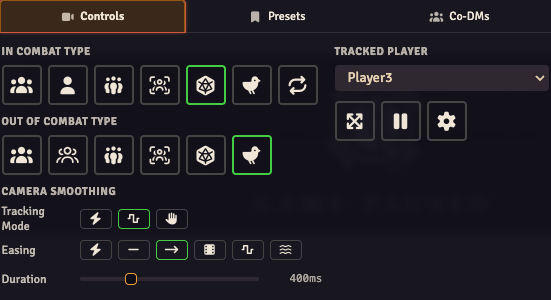
| Mode | Behavior |
|---|---|
| Track Owned Tokens | Follow tokens owned by the OBS user. |
| Track Active Owned Token | Follow the current-turn token if it’s owned by the OBS user. |
| Clone Selected Player | Mirror whatever player is picked in the Tracked Player dropdown. |
| Clone Active GM | Mirror the active GM’s viewport (see Multi-GM Handover for what “active” means with multiple GMs online). |
| Clone Turn Player | Mirror the current combat turn player’s viewport. |
| Fit Map to Scene | Zoom out to fit the entire scene. |
Tracking mode keybindings
Section titled “Tracking mode keybindings”You can switch tracking modes from the keyboard without opening the Director. All bindings are editable in Foundry’s Configure Controls settings.
In-combat tracking mode — hold Ctrl+Shift and press a number key:
| Key | Mode |
|---|---|
| Ctrl+Shift+1 | Track all Owned Tokens |
| Ctrl+Shift+2 | Track the currently active Owned Token |
| Ctrl+Shift+3 | Track Player-Owned Tokens |
| Ctrl+Shift+4 | Clone the Selected Player’s Viewport |
| Ctrl+Shift+5 | Clone the DM’s Viewport |
| Ctrl+Shift+6 | Fit Map to Screen |
| Ctrl+Shift+7 | Clone the Turn Player’s Viewport |
Out-of-combat tracking mode — hold Shift and press a number key:
| Key | Mode |
|---|---|
| Shift+1 | Track all Owned Tokens |
| Shift+2 | Track a Manual List of Tokens |
| Shift+3 | Track Player-Owned Tokens |
| Shift+4 | Clone the Selected Player’s Viewport |
| Shift+5 | Clone the DM’s Viewport |
| Shift+6 | Fit Map to Screen |
The Show Keybinding Notification setting (in the OBS Utils module config) controls whether a toast message confirms which mode was activated when a shortcut fires.
Below the mode radios, the Camera Smoothing section gives you an easing curve and a duration (0–1500ms) for camera tweens. All tracking modes use this — pans are no longer abrupt.
The cameraTrackingMode setting controls what gets sent to OBS observers: smooth (default) applies a moving average to recent viewport samples; dragRelease buffers all updates locally and only emits once the GM stops panning; raw sends every viewport tick with no buffering. This setting is driven from the Controls panel, not the standard module settings UI.
There are also toggle buttons for Limit Canvas to Edges, Pause Camera Tracking, and a Force-Open OBS Settings button (sends a Foundry settings dialog open command to the OBS client over socket).
Presets
Section titled “Presets”See Scene Camera Presets.
Co-DMs
Section titled “Co-DMs”See Multi-GM Handover.
Stream Composer
Section titled “Stream Composer”The Stream Composer is the overlay editor — where you build, position, and animate the layers that appear on your stream view. Open it from Module Settings → Stream Composer (the dedicated settings menu entry registered by OBS Utils).
The editor has four workspace mode tabs:
- Settings — layer name, overlay type (Inline or Canvas), and tiling mode.
- Layout — drag-and-drop component arrangement inside the overlay.
- Animation — keyframe timeline for animating component properties; trigger-based track transitions.
- Preview — live preview of the overlay with a selectable actor.
Inline layers stack components in a single row. Canvas layers give you a free-placement 2D canvas where components can be positioned anywhere. See Stream Composer for the full editor guide.
OBS Utils also supports overlay animations with keyframe tracks, triggers to drive those transitions from Foundry events, and bundles for packaging and sharing complete overlay sets.
Foundry compatibility
Section titled “Foundry compatibility”- Minimum: 13.344
- Verified: 14