Getting started
OBS Utils gives your stream its own Foundry view. You keep playing in your normal browser and control what the audience sees from there.
Video walkthrough: Watch OBS Utils — Basic Setup on YouTube.
1. Install and enable the module
Section titled “1. Install and enable the module”Link Patreon in your Foundry account profile, then find OBS Utils Premium under Subscribed Content. Install it through Foundry’s module installer, along with libWrapper and libCamera (1.13.2 or newer, below 2.0).
Launch your world, open Manage Modules, enable those dependencies and OBS Utils Premium, then save. Disable the public OBS Utils edition in that world; use one edition at a time. Premium 5.4.1 supports Foundry 13.351 through 14.
Moving from Free? Import your existing settings before continuing. Premium’s grouped settings are under Settings → Configure Settings → OBS Utils Premium → Open Setup.
2. Create a Foundry user for OBS
Section titled “2. Create a Foundry user for OBS”In your world, open Game Settings → User Management and create a user with the Player role. You can name it anything you like, such as OBS, Stream or Janet. Save your changes.
Keep your GM logged in through your normal browser. Your stream user will log in inside OBS Studio, so your own menus and camera movements can stay separate from the stream.
Your stream user sees only what that user has permission to see. Don’t give it the GM role just to get the picture working.
3. Choose the address to put in OBS
Section titled “3. Choose the address to put in OBS”Copy your full Foundry address from your browser’s address bar. Depending on which Foundry screen you’re on, it may end in /setup, /join or /game. Replace that final part with /game for the game board, or /stream for overlays only. Keep the rest of the address.
For your first setup, use /game. It shows the map and tokens. /stream is a different view: it shows only overlays, without the game board.
https://my-game.example/gamehttps://my-game.example/streamReplace my-game.example with your own Foundry address. Do not paste just /game or /stream into OBS, and do not add /stream after /game.
If your address has a port number or extra folder, keep it:
| Working game address | Overlays-only address |
|---|---|
https://my-game.example/game |
https://my-game.example/stream |
https://my-game.example/foundry/game |
https://my-game.example/foundry/stream |
http://localhost:30000/game |
http://localhost:30000/stream |
The localhost:30000 example is for OBS running on the same computer as your Foundry server. Otherwise, use the Foundry address that works from the computer running OBS.
For example, https://my-game.example/setup and https://my-game.example/join both become https://my-game.example/game for the game board.
Using a hosting provider?
Section titled “Using a hosting provider?”Specialised Foundry hosts such as Sqyre may need extra configuration, or a message to their support team, before /stream is reachable. If your normal game address works but the matching /stream address gives a missing-page error or sends you to the host’s dashboard, ask the host how to access Foundry’s /stream route.
I can’t provide hosting-provider-specific setup or support. I can help with OBS Utils itself; your host handles its URLs, access requirements and server configuration.
4. Add the browser source in OBS Studio
Section titled “4. Add the browser source in OBS Studio”- In OBS Studio, select the scene you want to use.
- In Sources, click + → Browser. Name it Foundry.
- Paste your full
/gameaddress into URL. - Set the width and height to match your OBS canvas, for example 1920 × 1080, then click OK.
- Right-click the new source and choose Interact. This opens a window where you can click the Foundry login screen.
- Log in as the stream user you created, then close the interaction window. Keep the browser source visible.
You should now see your Foundry game in the OBS preview. OBS Utils automatically detects that it’s running inside an OBS Browser source. The Foundry user’s name doesn’t affect detection.
5. Frame the game with the Director
Section titled “5. Frame the game with the Director”Return to your GM browser and activate the scene you want to show. In the token scene controls, click the broadcasting-signal button, Open Stream Director.
In Controls, choose Fit Map to Screen for Out of Combat Type. Hover a mode button to read its name. If combat is active, set In Combat Type too.
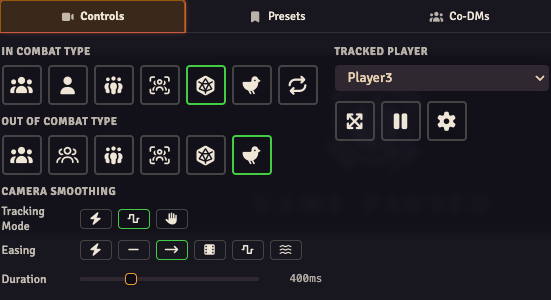
The image shows the 2D camera controls. Colours and spacing may differ with your Foundry theme.
Check the OBS preview: the map should fit the source. To follow your GM camera instead, choose Clone the DM’s Viewport. Camera modes explains the other choices.
6. Add overlays when the game view works
Section titled “6. Add overlays when the game view works”Open Settings → Configure Settings → OBS Utils Premium → Overlay Editor → Open Editor in your GM browser. Follow the Stream Composer guide to create an overlay and choose its actor data.
You can keep using /game. Use /stream when you want an overlays-only browser source, for example over a game view captured another way. To switch, open the browser source’s properties and replace the final /game with /stream using the examples above.
A blank or transparent /stream view is normal before you have an overlay to display. It never shows the map. If you want the game board, switch back to /game.
Optional: let Foundry control OBS
Section titled “Optional: let Foundry control OBS”You do not need a WebSocket connection just to display Foundry or its overlays. Set up OBS Remote when you want Foundry events to control OBS scenes or sources.
If you’re stuck
Section titled “If you’re stuck”| What you see | What to check |
|---|---|
| The hosting dashboard or an error page | Copy the actual running world’s address. Keep its host, port and any folder before /game; for /stream access on a hosted service, check with the host. |
| Foundry’s login screen inside OBS | Right-click the browser source → Interact, then log in as your stream user. |
| A transparent source with no map | Check whether its URL ends in /stream. Use /game to show the map. |
| The map appears, but the camera follows the wrong thing | Change the Director mode for the current combat state and check your stream user’s scene. |
| Your GM browser has hidden menus | You may have enabled Pin This Browser to OBS Mode in your normal browser. Use the recovery steps. |
For help with OBS Utils, join Discord. Include your module version, Foundry version, whether you used /game or /stream, and what appears in OBS. Don’t post passwords or private invitation links.