Animate an overlay
Animations control how an overlay’s components move, fade and react to events. A track describes one part of that behaviour. A trigger response chooses another track when an event occurs.
This example makes a name plate stay hidden until a public roll, appear briefly, then return to its hidden state. Use an overlay with a Text component from the Overlay Editor guide.
Open Animation
Section titled “Open Animation”Select the overlay and open Animation. If it has no animation yet, click Set up animation.
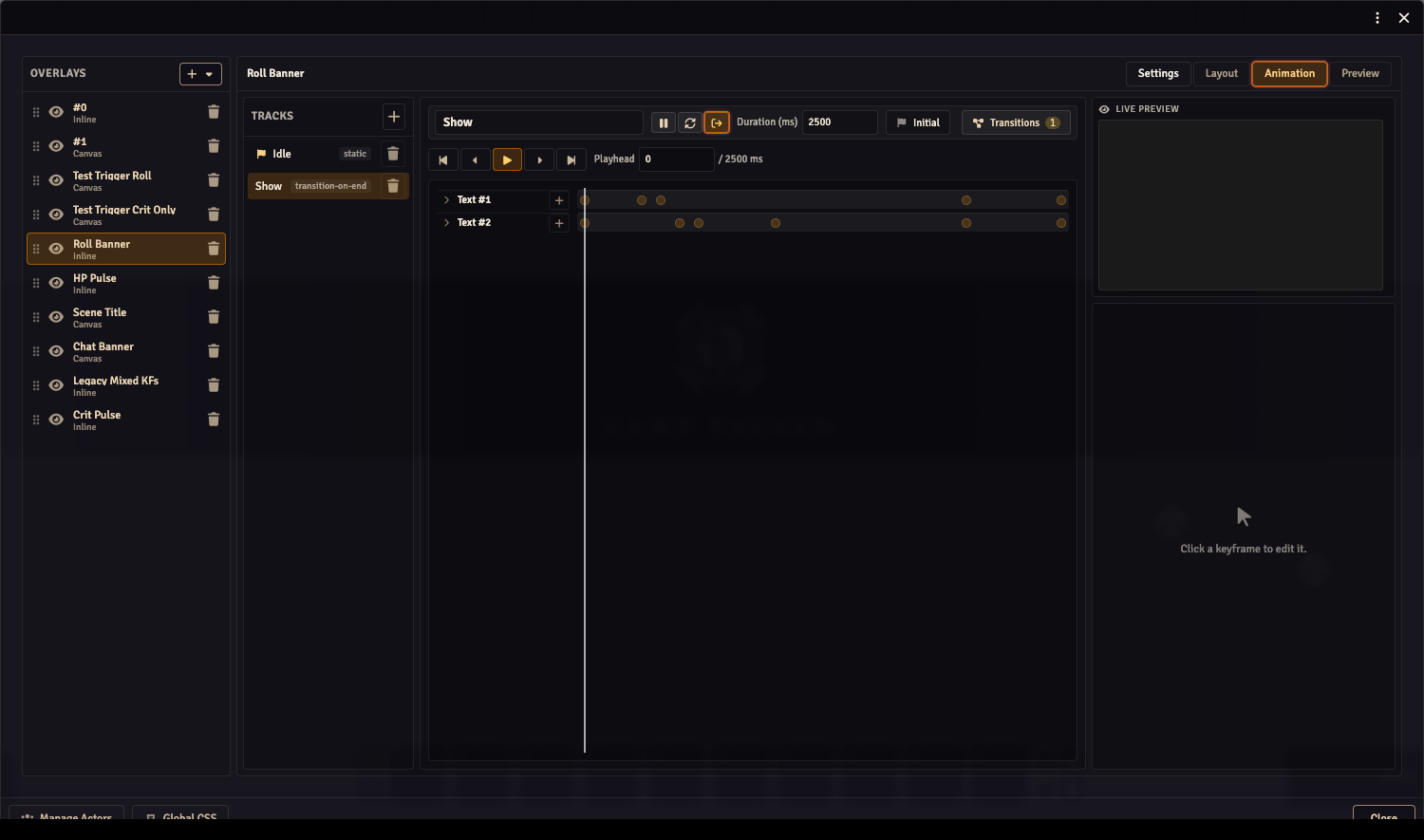
The left panel lists the tracks. The middle contains the selected track’s name, behaviour, duration and timeline. The right side shows its live preview and the properties of the selected component or keyframe.
1. Make a hidden starting track
Section titled “1. Make a hidden starting track”- Select the initial track in the left panel. Its flag marks it as the track used when the overlay opens.
- Give it the name
Idlein the name field above the timeline. - Choose Static (no playback) with the behaviour buttons. Hover an icon to see its label.
- Select your Text component in the timeline.
- At playhead
0, set Opacity to0and finish editing the field. Changing the value creates a keyframe at that time; its diamond becomes filled.
This track holds the component transparent. It isn’t the overlay list’s visibility toggle: keep the overlay itself enabled so it can receive triggers.
2. Make a visible track
Section titled “2. Make a visible track”- Click + beside Tracks to add another track. Select it and name it
Show. - Choose Transition to another track on end with the behaviour buttons.
- Set Duration (ms) to
2000, which is two seconds. - Click Transitions. Under When track ends, set Jump to track to Idle and starting at to
0, then close the drawer. - At playhead
0, select the same component, set Opacity to100and finish editing the field to create its keyframe.
Show now holds the name visible for two seconds, then returns to Idle. Every component you want to hide needs its own opacity keyframe; hiding one Text component does not hide the overlay’s other images or bars.
3. Connect a roll to Show
Section titled “3. Connect a roll to Show”Select Idle, then click Transitions above the timeline.
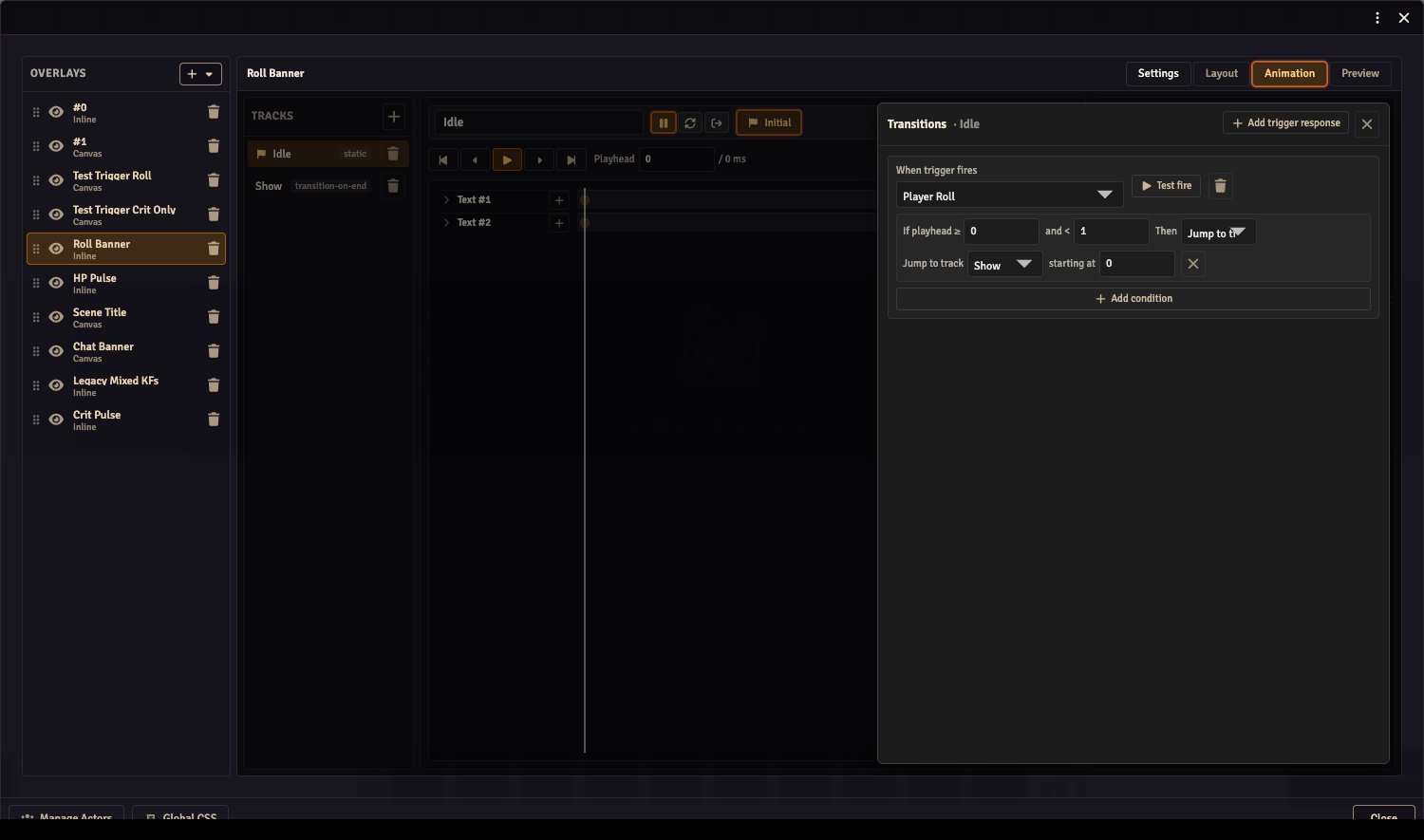
- Click Add trigger response.
- Under When trigger fires, choose Player Roll.
- In the condition row, set If playhead ≥ to
0and and < to1. Idle is static at time zero. - Choose Jump to track, select Show, and leave starting at set to
0. - Click Test fire. The name should appear, remain visible for two seconds, then disappear.
Test a real public roll while watching the OBS browser source too. Private and blind rolls aren’t public stream events.
Add a fade
Section titled “Add a fade”On Show, use opacity keyframes instead of keeping one value for the whole track:
| Time | Opacity | Result |
|---|---|---|
0 |
0 |
Start hidden. |
200 |
100 |
Fade in over 0.2 seconds. |
1800 |
100 |
Hold until the last 0.2 seconds. |
2000 |
0 |
Fade out before returning to Idle. |
Move the playhead to each time, change the property value and finish editing the field to save its keyframe. If the value is unchanged, click the empty diamond to add a keyframe with that value. Clicking a filled diamond removes the existing keyframe. Click an existing keyframe to edit its time, value and easing. Linear gives an even fade; other easing options change the speed through it.
The X and Y properties control the component’s position. Rotation turns it. Animate the properties you need; the layout itself remains the starting arrangement.
Decide what a second trigger should do
Section titled “Decide what a second trigger should do”Responses belong to their selected track. A response on Idle does not automatically run while Show is playing.
To restart the effect on another roll, select Show and add a Player Roll response that jumps to Show at time 0. Set its time condition to cover the full Show duration. To keep the first effect playing uninterrupted, leave Show without that response, or use Do nothing for the applicable time range.
Several time conditions let one event behave differently during different parts of an animation. The start time is included; the end time isn’t. For example, 0 to 500 covers the first half second.
Use the event’s values
Section titled “Use the event’s values”A Text component can read values from the event using paths such as trigger.total, trigger.formula or trigger.actor.name. Until an event supplies those values, the component can be empty.
Use the Triggers guide for the available built-in events, payload fields and system-companion events. The overlay’s Tile by setting controls whether the effect belongs to an actor, a player or one shared overlay; choose it in Settings.
Timeline controls and shortcuts
Section titled “Timeline controls and shortcuts”| Control | Action |
|---|---|
| Play / Stop | Play or stop the selected track in the editor. |
| Click timeline background | Move the playhead. |
| Click a keyframe | Select it for editing. |
| Drag a keyframe | Change its time. |
| Ctrl/Cmd + drag background | Select several keyframes with a rectangle. |
| Drag selected keyframes | Move them together. |
| Previous / next keyframe | Jump to the neighbouring keyframe. |
| Ctrl/Cmd + previous / next | Jump to the first or last keyframe. |
| Left / Right arrow | Nudge selected keyframes by 1ms. |
| Ctrl/Cmd + Left / Right | Nudge by 10ms. |
| Shift + Left / Right | Nudge by 100ms. |
| Backspace / Delete | Delete selected keyframes. |
Player and actor event data
Section titled “Player and actor event data”When an overlay repeats for players, a roll animates the rolling player’s tile. When it repeats for actors, an actor-targeted event animates that actor’s tile. Each tile keeps its own event values while its animation plays, even when another player or actor triggers an event.
If the effect doesn’t work
Section titled “If the effect doesn’t work”- Visible all the time: check that Idle is the initial track and has an opacity-zero keyframe for each visible component.
- Appears but never hides: check Show’s duration and its end destination back to Idle.
- The next roll does nothing: check which track is playing and whether that track has a response for the event.
- No value appears: test an event that supplies the chosen data path, and check its actor or user context.
- Preview works but OBS doesn’t: check the stream user’s actor access, the selected actors and the browser source’s connection to the world.