Camera controls
Open Settings → Game Settings → libCamera → Open camera controls.
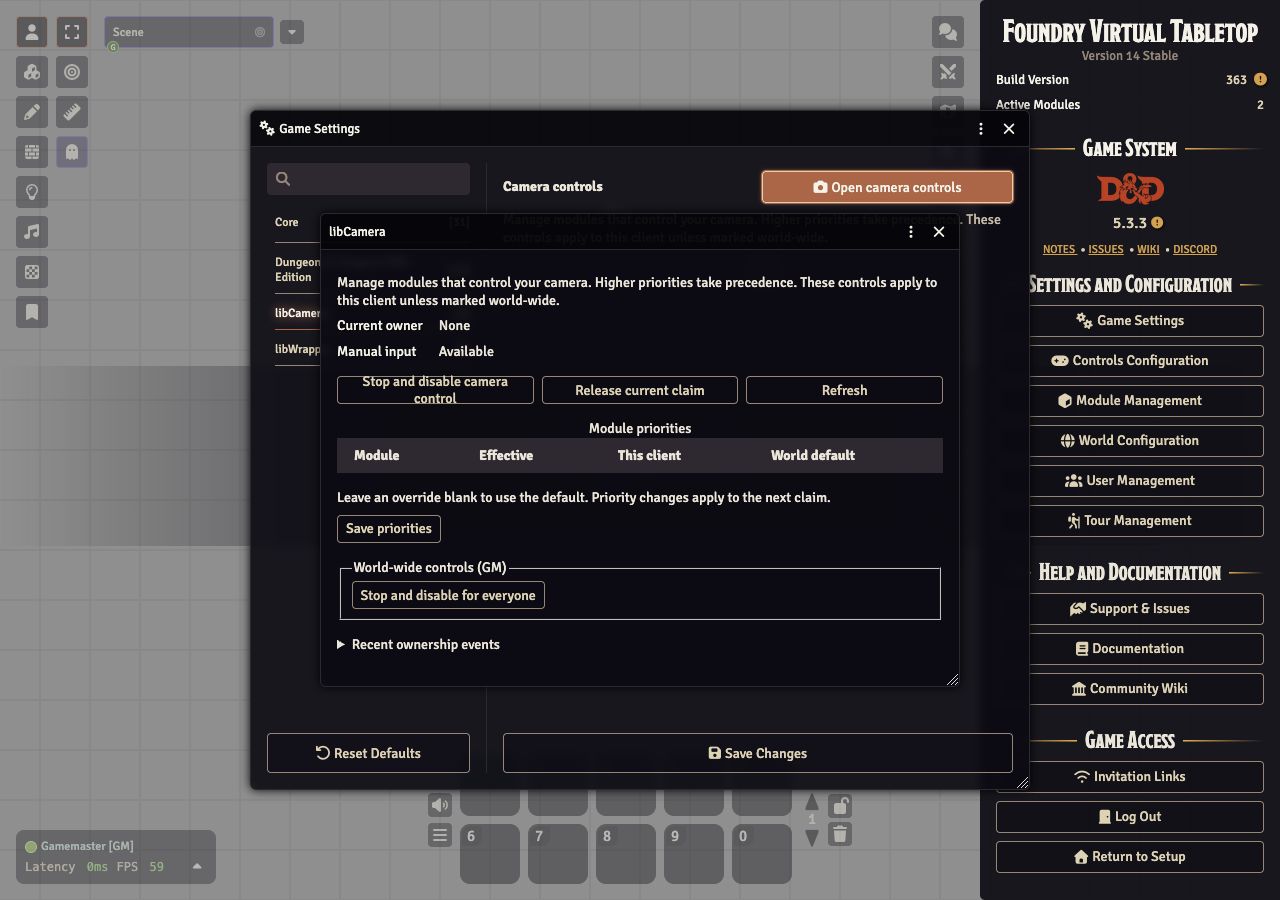 The panel shows the current owner of your camera, whether manual camera input is
temporarily locked, and the modules registered with libCamera. Use Refresh to
update the displayed information.
The panel shows the current owner of your camera, whether manual camera input is
temporarily locked, and the modules registered with libCamera. Use Refresh to
update the displayed information.
Release current claim ends the current module’s claim. Another module can then request control. To prevent further requests as well, choose Stop and disable camera control. This stops movement through libCamera, restores manual input, and keeps control disabled on this client until you choose Re-enable on this client.
You can also use the Stop and disable camera control keybinding, initially Control + Shift + Escape. Change it in Foundry’s Configure Controls if that combination conflicts with your operating system or another application.
These controls affect modules using libCamera. A module that moves the camera directly has its own controls.
World-wide controls
Section titled “World-wide controls”GMs have a separate World-wide controls (GM) section. Stop and disable for everyone ends library camera control across the world and prevents further requests, including on clients that connect later.
Re-enable for everyone removes the world-wide block. It preserves each client’s individual opt-out. If camera control remains disabled for you, choose Re-enable on this client too.
Why a module could not take control
Section titled “Why a module could not take control”Open Recent ownership events to see recent requests and why they ended or
were rejected. A busy result means another claim has equal or higher priority.
A disabled result means camera control is stopped locally or world-wide.
Changing scenes releases current claims. Modules must request control again after the new canvas is ready.