Send rolls to chat and check connections
Public rolls can be sent to your stream chat with a message you customise. Private and whispered rolls are excluded.
Enable roll messages
Section titled “Enable roll messages”- Open Settings → Configure Settings → Ethereal Plane → Open Setup Menu.
- In General, enable Send Rolls to Chat.
- Edit Chat Message Template if you want a different message.
- Make a public roll in Foundry and check your connected stream chat.
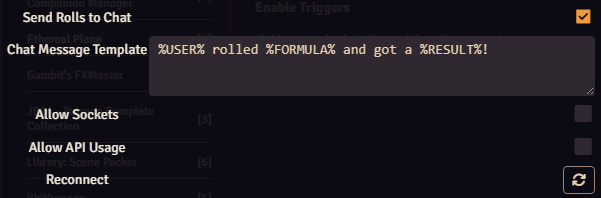
The template supports these placeholders:
| Placeholder | Replaced with |
|---|---|
%USER% |
The player’s display name. |
%FORMULA% |
The roll formula, such as 1d20+4. |
%RESULT% |
The roll’s result. |
For example:
%USER% rolled %FORMULA%: %RESULT%The streamer needs a working chat connection. Check account login and the selected service if a public roll appears in Foundry but no message reaches chat.
MidiQoL rolls
Section titled “MidiQoL rolls”MidiQoL needs one additional option: enable Allow Sockets at the bottom of the General tab. This lets player clients send their evaluated MidiQoL roll information to the GM for broadcast.
That option also permits player clients to submit roll-message text. Enable it for a group you trust to use it appropriately.
Check the right connection
Section titled “Check the right connection”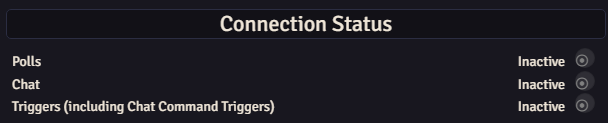
- Polls can stay inactive until a poll runs.
- Chat indicates a direct chat-reading connection. Sending roll messages and using chat-command triggers do not by themselves make it active.
- Triggers is separate from both. Check Enable Triggers and the macro assignment if chat commands or rewards don’t execute a macro.
Connecting the installation and logging into your account are separate setup steps. If login expires, reopen Log in and complete the fresh code request. Getting started shows both steps.